TripLife on Mac, and a new way to begin a trip
It is a Sunday evening in November and the autumn trip to Japan is two weeks away. The temple list lives in one tab, the train times in another, and the phone keeps sliding off the edge of the desk. You want to see the whole week at once, move a day around and still have it all in your pocket when you leave. That is the evening TripLife 2.1 was made for.
TripLife 2.1 puts your trips on the Mac and makes starting a new one feel like a short flight. It also finds past trips in your photo library, gives every flight a page worth opening, adds new ways to share, and turns iPhone Duo into a desk clock.
Plan at your desk
TripLife is now on Mac. Open it at your desk and the trip you started on your phone is there on a big screen: the map, the days and every stop side by side and a keyboard for the notes you never finish typing on a train.
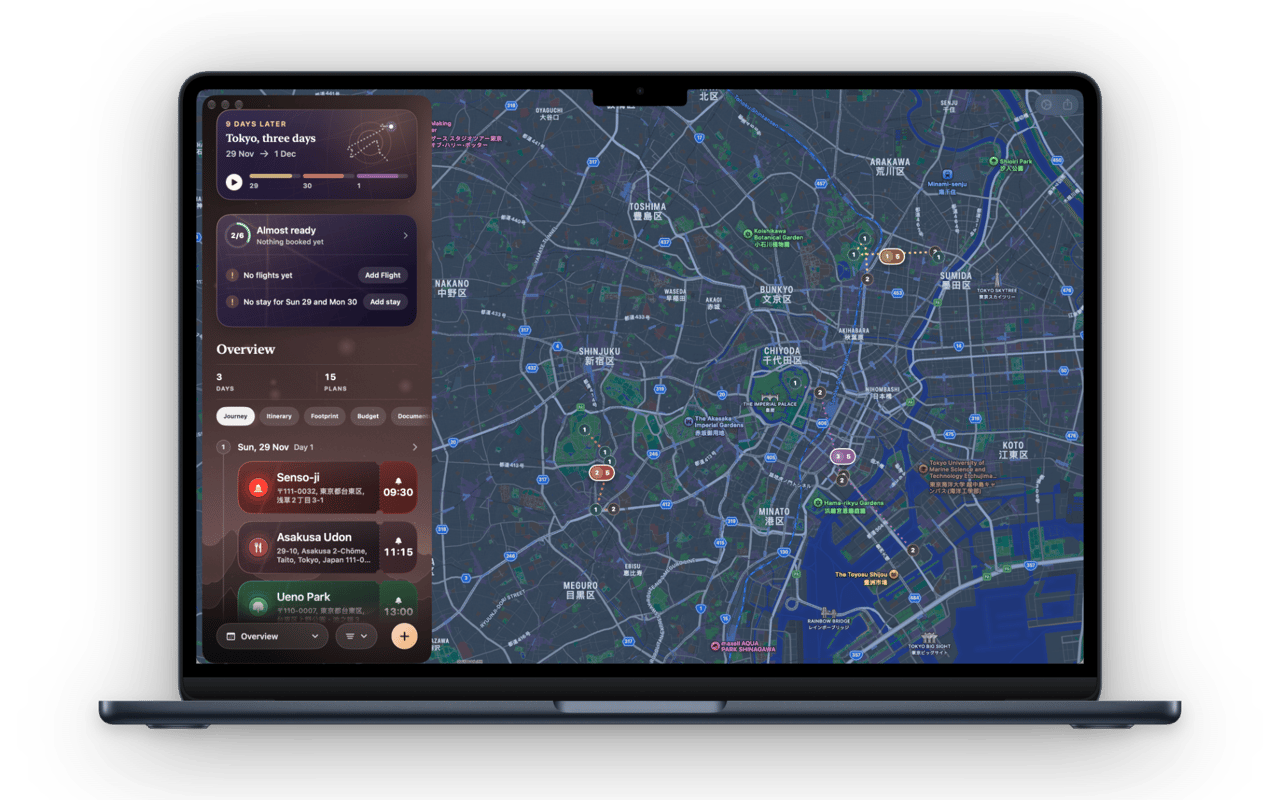
Open a trip and the map fills the window while the day's stops stay in view. Drag a hotel confirmation or a ticket PDF into Travel Documents and it is filed with the trip. With iCloud Sync, a TripLife Pro feature, what you add on the Mac is waiting on your iPhone and iPad, and the other way round.
On our test trip, three days in Tokyo, the Mac made the slow part quick. The first day ran Senso-ji at 9:30, Asakusa Udon at 11:15 and Ueno Park at 13:00, and the map beside the list showed at a glance how close they sit, so the day could be checked and reordered in a minute. The next morning, the same plan was already open on the phone.
Follow the paper plane
Creating a trip is now a short flight. A paper plane leads you through destinations, dates, the trip's name, a cover and a budget, then lands on a page that shows the trip ready to go. Each step is one question, so starting a trip takes a minute rather than a form.
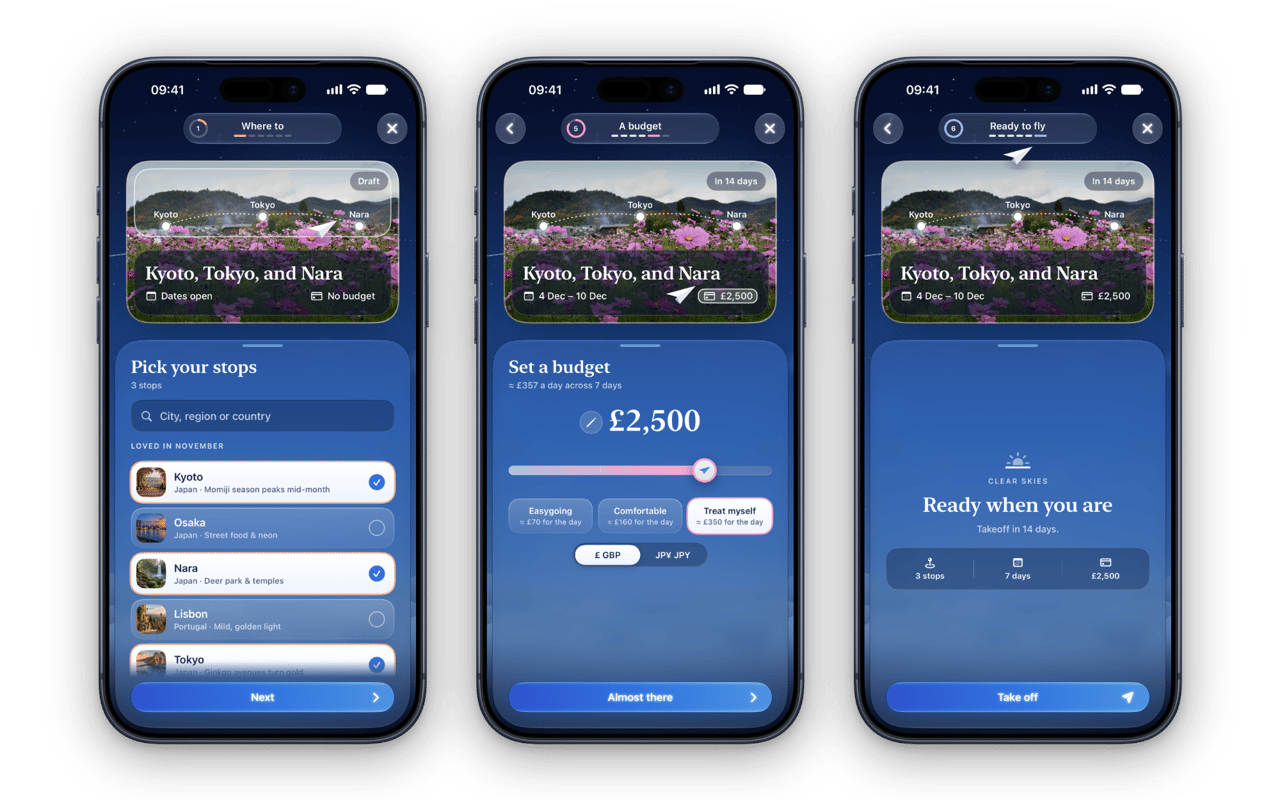
Tap to create a trip and the plane takes off. On the first step, this month's picks sit under the search, so you can start from a suggestion when you have days free but no plan. Pick one or several places, choose the dates, name the trip, choose a cover and set a budget, or skip what you do not know yet.
For the autumn trip we searched for nothing at all. Kyoto was already among November's picks, with a note that the maple season peaks mid-month, and Nara sat two rows below. We added Tokyo, where our flight from Shanghai lands, chose a week in early December, set a budget, and the plane landed on a trip with three cities, ready to fill with days.
Past trips, from your photos
Most of us have years of trips in the photo library and none of them written down. Give TripLife access to your photos and it finds those trips for you, keeps looking in the background as new photos arrive, and can send each one to Past Trips with its dates and places.
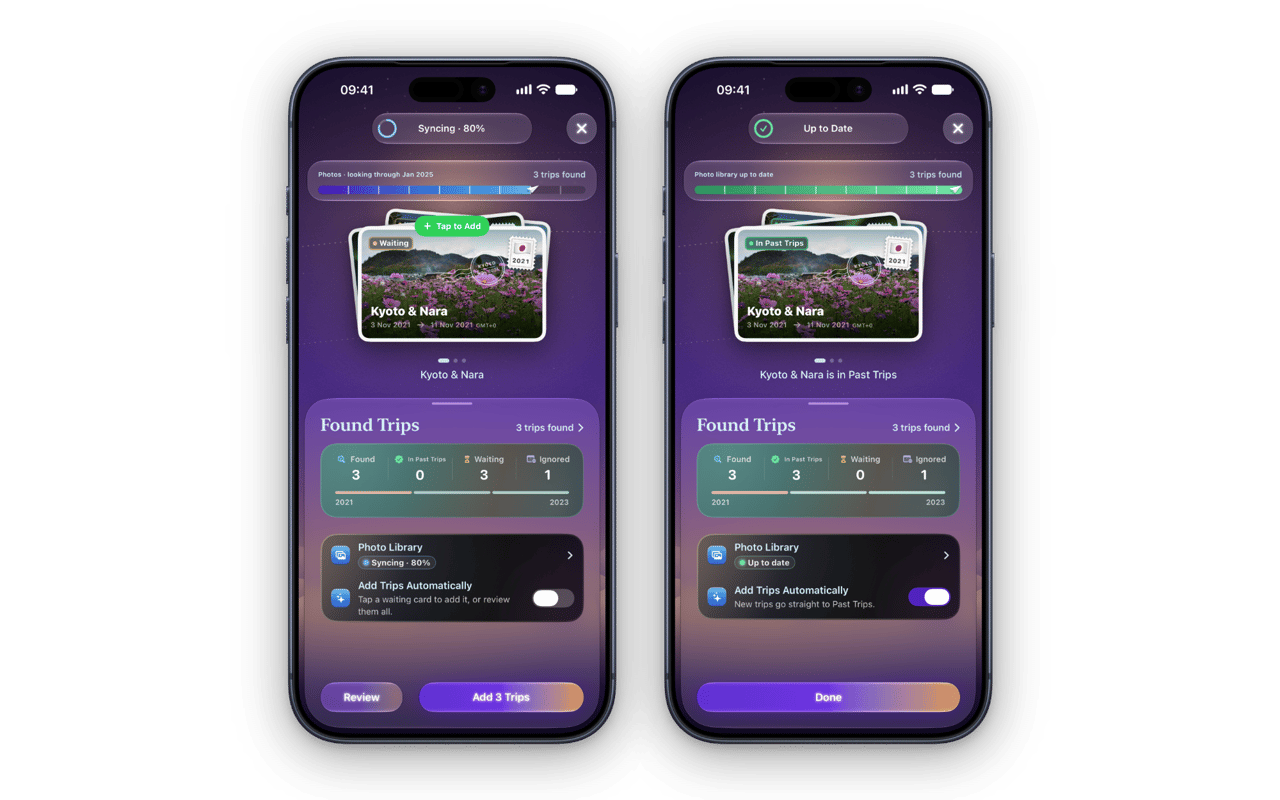
Allow photo access when TripLife asks, or start from Past Trips, and the search runs on its own while you do something else. When it finishes, look over what it found and send the trips you want to keep to Past Trips. Free plans can import up to 10 past trips in total; TripLife Pro has no limit.
A week in Kyoto and Nara from years ago, a work trip that turned into a holiday, the summer you finally saw the coast: they come back as trips with their photos and dates, and nobody has to type them in.
A flight page worth opening
Open a flight and its route is drawn across the globe, with the plane in flight on it and the departure and arrival times at each end. Below the map, your seat, cabin class and booking code sit together, so the details you need at the gate are on one page.
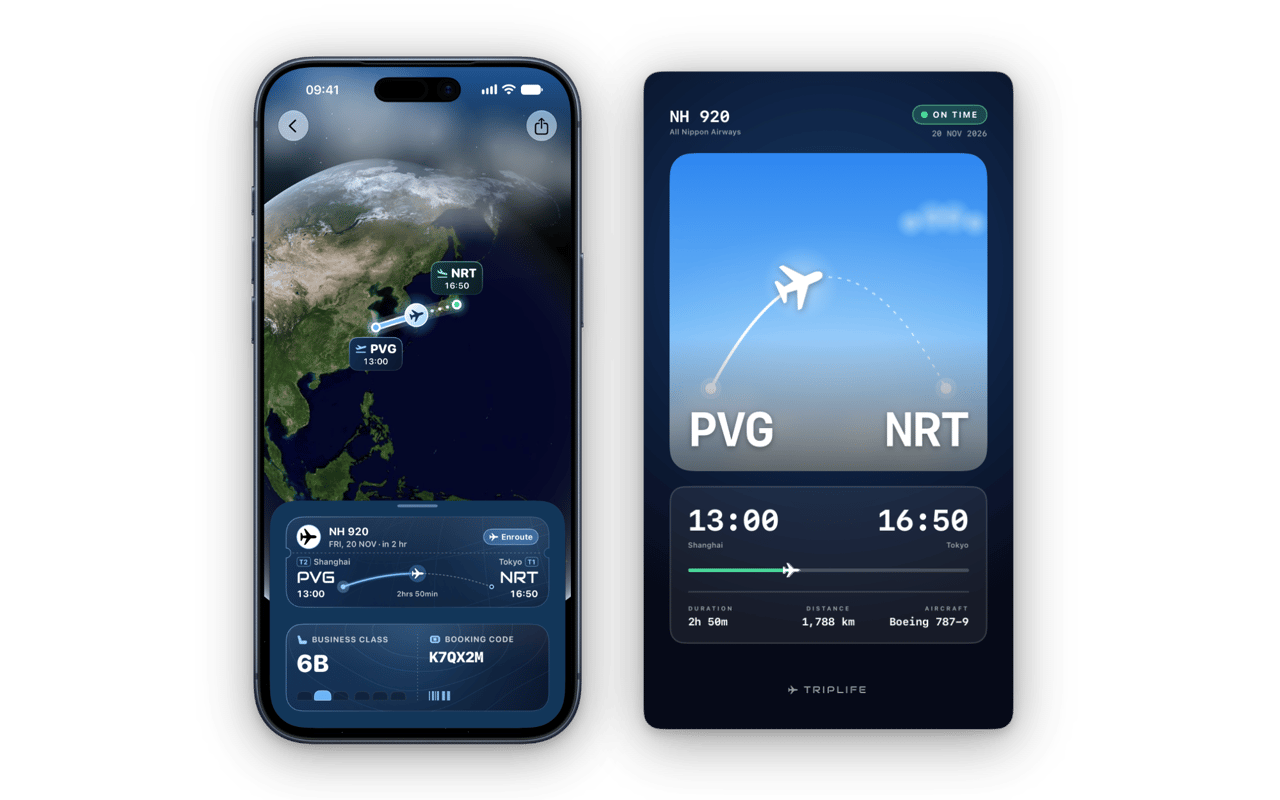
From a flight's page you can add the ticket as a flight expense, so the trip's budget stays honest. To show someone where you are, share the flight as an image in one of five templates made for flights, from a boarding-pass card to a route drawn across the sky; a place's altitude has five templates of its own.
On the way to Tokyo, NH 920 left Shanghai at 13:00 and was due at Narita at 16:50 local time. Halfway across the sea the page showed the plane over the water and seat 6B with its booking code, and a Flight Path card sent to the friend meeting us at arrivals said more than any message would have.
New templates and skylines
Sharing a trip photo now has three new templates: Blueprint, Film Strip and Poster. They join the five you already had, so there are eight ways to turn one photo into something worth sending.
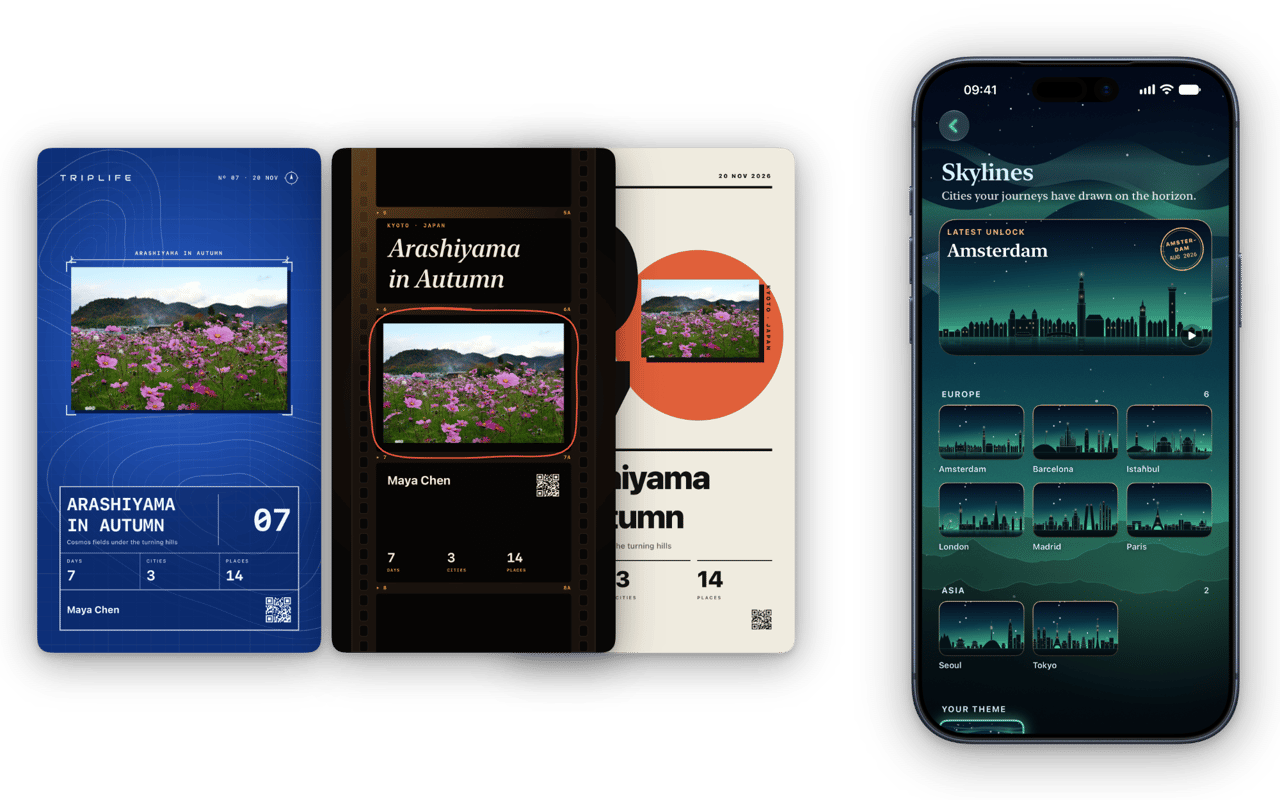
Eight new city skylines arrive too: Madrid, Milan, Amsterdam, Barcelona, Seoul, Istanbul, Kuala Lumpur and Los Angeles. Skylines appear in your Skylines gallery as you travel, under Personalization › Theme, and with TripLife Pro you can set one as the background of the App.
Takeshi Kuboki's photo of Arashiyama, a field of cosmos under the autumn hills, looks like a page from a sketchbook in Blueprint, a strip of film in Film Strip and a travel poster in Poster. And as your trips add up, the gallery fills in more cities, so choosing which skyline to keep behind your trip list becomes a small pleasure.
iPhone Duo on your desk
On iPhone Duo, stand the phone partly open on a desk or a hotel nightstand and its outer display can show a desk clock: the time and the place you are in, the altitude, the weather and the sunset. It is redrawn once a minute and dims after dark.
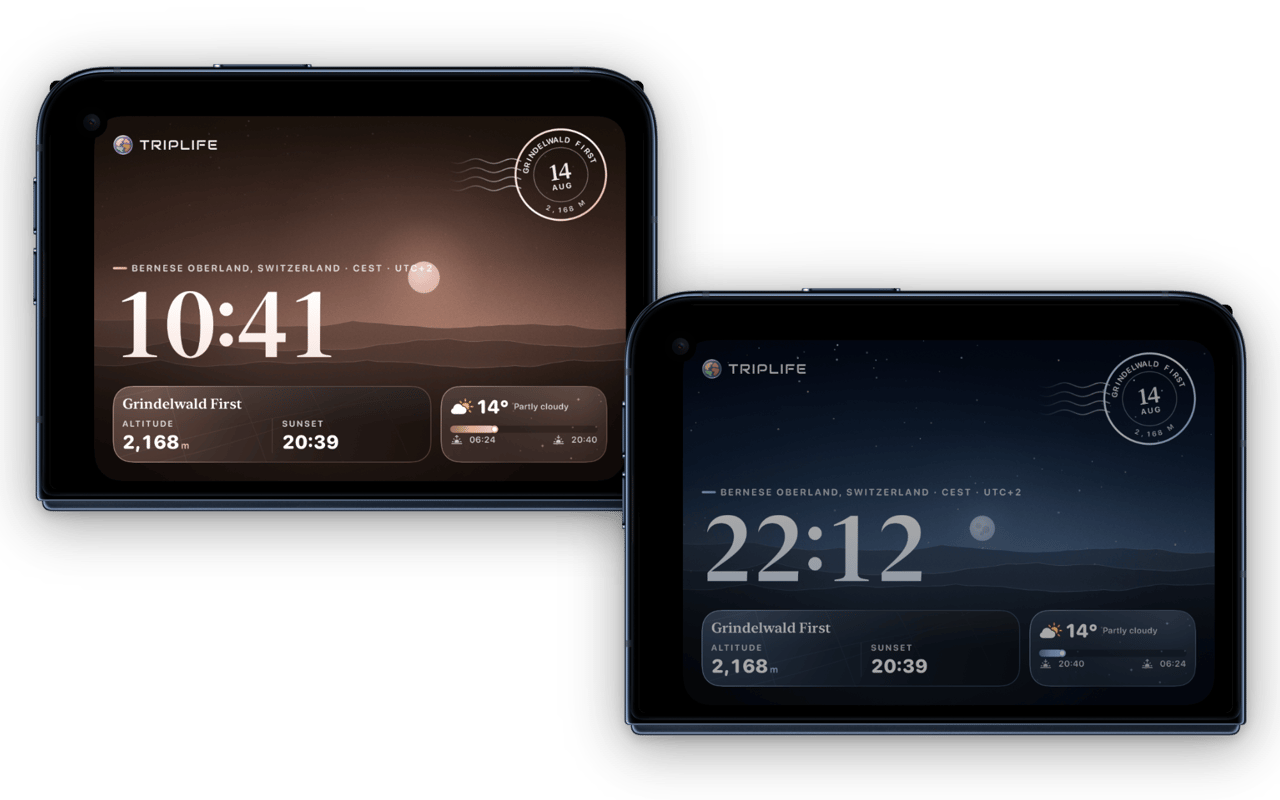
Stand the phone partly open and the outer display can show the clock. To have it appear by itself, turn on Show Automatically under Personalization › Desk Clock; to close it, tap the clock, then Close. When you open or close the phone, the Passport and your skyline move with it, so going from one screen to the other feels like one motion.
One August weekend in Grindelwald, the clock stood on the nightstand. In the morning it read 10:41 with a sunset at 20:39, a reminder to be back outside in time for the light on the peaks. At night it dimmed to a quiet 22:12, bright enough to read the time and soft enough for a dark room.
Smaller things you might notice
- Text size: follows the size you chose with Dynamic Type
- VoiceOver: TripLife works with it
- Reduce Motion: TripLife respects the setting
- Increase Contrast: TripLife respects it too
- Past Trips: import trips straight from the list
- Travel Documents on Mac: drag files in to add them
Update and try it
TripLife 2.1 is on the App Store. Update TripLife on your iPhone, tap to create a trip and follow the paper plane to your next destination; then, at your desk, open the same trip in TripLife on your Mac and let the big screen do the slow part. The Kyoto photo in the share templates is “Autumn foliage 2012” by Takeshi Kuboki, CC BY 2.0, via Wikimedia Commons.